How to Embed Forms in Notion: Complete Guide for 2026
How to Embed Forms in Notion: Complete Guide for 2026
If you’re using Notion to manage projects, track data, or collaborate with teams, you’ve probably wondered: “How do I add forms to Notion?” Whether you need to collect customer feedback, register event attendees, or gather lead information, embedding forms directly in your Notion workspace can streamline your workflow dramatically.
The good news? There are now two main ways to embed forms in Notion: using Notion’s native form feature or integrating third-party form builders. Each approach has its strengths, and choosing the right one depends on your specific needs.
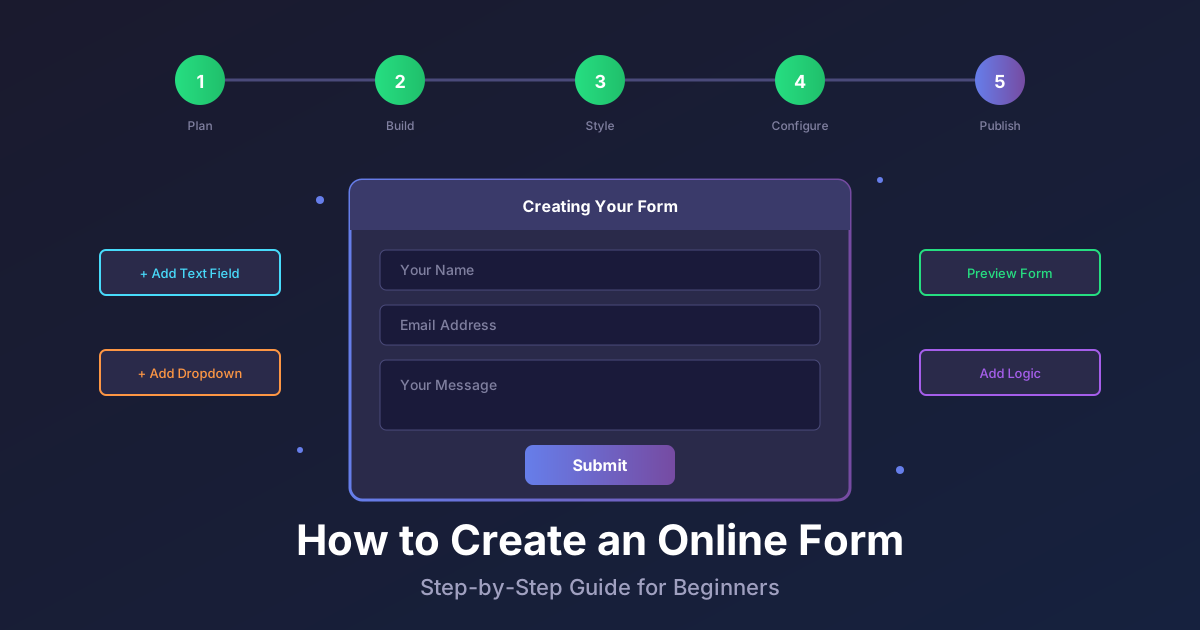
In this comprehensive guide, we’ll walk through both methods step-by-step, compare the best form builders for Notion, share best practices, and help you avoid common pitfalls. By the end, you’ll know exactly how to embed forms in Notion that look professional, function smoothly, and integrate seamlessly with your databases.
Understanding Your Options: Native vs Third-Party Forms
Before diving into the technical steps, let’s clarify what options you have for adding forms to Notion.
Notion’s Native Forms (Released 2024)
In 2024, Notion introduced native form functionality that allows you to create forms directly from your databases. This was a game-changer for many users who previously relied entirely on third-party tools.
Key features of Notion native forms:
- Create forms directly from any Notion database
- Automatic database integration (responses go straight to your database)
- Free for all Notion users
- Simple, Notion-style interface
- No coding required
Limitations:
- Less customization compared to dedicated form builders
- Limited conditional logic capabilities
- Fewer design options for branding
- No custom domains or advanced integrations
- Can’t create standalone forms outside of Notion
Third-Party Form Builders
Third-party form builders offer more flexibility, advanced features, and professional designs. Popular options include Tally, Fillout, NoteForms, forms.app, Formaloo, and Pixelform.
Key advantages of third-party tools:
- Advanced conditional logic and branching
- Custom branding and design options
- Standalone forms with custom domains
- Payment integration capabilities
- Advanced analytics and reporting
- Webhook support for automation
- Better mobile responsiveness
- Spam protection features
The trade-off? You’ll need to set up the integration and potentially pay for premium features, though many tools offer generous free tiers.
Method 1: Using Notion’s Native Forms
If you want the simplest solution and your needs are straightforward, Notion’s native forms are perfect. Here’s how to set them up.

Step 1: Create or Open Your Database
First, you need a Notion database where form responses will be stored. This could be a table, board, gallery, or any other database view.
- Open Notion and navigate to the page where you want to collect data
- Create a new database by typing
/databaseand selecting your preferred view (table is most common for forms) - Set up your database properties (columns) that match the information you want to collect
Pro tip: Think carefully about your database structure before creating the form. Each database property will become a form field, so make sure you have all the fields you need.
Step 2: Create a Form View
Now, transform your database into a form:
- Click on the ”+ New” button next to your existing database views (or the view options menu)
- Select “Form” from the view types
- Notion will automatically create a form with all your database properties as form fields

Step 3: Customize Your Form
Once your form view is created, customize it to fit your needs:
- Rearrange fields: Drag and drop fields to reorder them
- Edit field labels: Click on any field name to change how it appears to form respondents
- Add descriptions: Provide helpful context for each field
- Make fields required: Toggle the required switch for mandatory fields
- Hide fields: Remove fields you don’t want in the form but need in your database
Step 4: Share Your Form
To make your form accessible:
- Click “Share form” in the top-right corner of the form view
- Toggle “Share to web” to make it publicly accessible
- Copy the form link to share via email, social media, or embed it
Step 5: Embed the Form in a Notion Page
Here’s where it gets interesting—you can embed your Notion form in another Notion page:
- Copy your form’s public link
- Navigate to the Notion page where you want to embed it
- Type
/embedand press Enter - Paste your form link in the embed block
- Click “Embed link”
Your form will now appear inline on the Notion page, allowing team members or visitors to fill it out without leaving Notion.
Method 2: Embedding Third-Party Forms in Notion
For more advanced needs—custom branding, payment collection, webhooks, or standalone forms—third-party form builders are your best bet.

Step 1: Choose Your Form Builder
Select a form builder that suits your needs. Here are some popular options:
- Pixelform — Affordable ($39/mo for 1,000 responses), custom domains, webhooks, no branding limitations
- Tally — Free tier available, Notion-like interface, great for simple forms
- Fillout — Advanced conditional logic, powerful integrations
- NoteForms — Built specifically for Notion users
- forms.app — Visual form builder with templates
For this guide, we’ll use general steps that work with most form builders.
Step 2: Create Your Form
In your chosen form builder:
- Sign up for an account (most offer free plans)
- Create a new form using the builder’s interface
- Add fields, customize design, and configure settings
- Set up any advanced features (conditional logic, payment fields, etc.)
- Configure the Notion integration (most modern form builders have direct Notion connectors)
Step 3: Connect to Your Notion Database
The exact steps vary by tool, but typically:
- In your form builder, look for “Integrations” or “Connect to Notion”
- Authorize the connection to your Notion workspace
- Select the target database where responses should be saved
- Map form fields to database properties
Important: Make sure your Notion database properties match your form fields (same data types, same names if possible).
Step 4: Get Your Embed Code or Link
Once your form is ready:
- Click “Share” or “Publish” in your form builder
- Look for the “Embed” option
- Copy either:
- The direct form link (URL)
- The embed code (if provided)
Most form builders provide a simple URL that works perfectly with Notion’s embed feature.
Step 5: Embed in Your Notion Page
Now, add the form to Notion:
- Open your Notion page
- Type
/embedand press Enter (or click the ”+” icon and select “Embed”) - Paste your form URL into the embed block
- Press Enter or click “Embed link”
- The form will appear inline on your Notion page
Alternative method: Simply paste the form URL on a new line in Notion, and when the preview appears, click “Create embed” instead of “Create bookmark.”
Step 6: Resize and Position
After embedding:
- Drag the corners of the embed block to resize it
- Drag the block up or down to reposition it on your page
- Adjust the height if the form appears cut off (click the embed and select “Original” or “Full width”)
Comparing Form Builders for Notion: Which One is Right for You?
With so many options available, how do you choose? Here’s a detailed comparison to help you decide.
For Simple, Free Forms: Notion Native Forms or Tally
Best for: Basic data collection, internal team forms, simple feedback
- Pros: Free, seamless Notion integration, no learning curve
- Cons: Limited customization, no advanced features
For Advanced Logic and Customization: Fillout or Pixelform
Best for: Lead generation, complex workflows, conditional branching
- Pros: Powerful conditional logic, custom branding, advanced integrations
- Cons: Learning curve, paid plans for full features
Pixelform specifically stands out here because you get 10x more responses for the same price compared to competitors—$39/month for 1,000 responses vs. 100 on other platforms. Plus, custom domains, webhooks, and branding removal are included at every tier, not locked behind enterprise plans.
For Notion Power Users: NoteForms or forms.app
Best for: People who live in Notion and want forms that feel native
- Pros: Designed specifically for Notion, easy setup, Notion-style UI
- Cons: May lack some advanced features of standalone builders
For Payment Collection: Pixelform or Fillout
Best for: Selling products, accepting donations, event registration with fees
- Pros: Payment integration, checkout fields, automated receipts
- Cons: Transaction fees may apply
Best Practices for Embedding Forms in Notion
Now that you know how to embed forms, here are some tips to make sure they work beautifully and effectively.
1. Keep Forms Short and Focused
Long forms intimidate users and reduce completion rates. Ask only for essential information. You can always follow up later for additional details.
Example: Instead of asking for company name, job title, company size, industry, and website in one form, just ask for name, email, and one key qualifier.
2. Use Conditional Logic to Create Smart Forms
With third-party form builders, you can show or hide fields based on previous answers. This makes forms feel personalized and reduces cognitive load.
Example: If someone selects “Yes” to “Do you need a demo?”, automatically show a calendar scheduling field. If they select “No,” skip directly to the thank-you message.
3. Test on Mobile Devices
A significant portion of form responses come from mobile devices. After embedding, open your Notion page on your phone to ensure the form displays correctly and is easy to fill out.
4. Set Up Notifications
Don’t let form responses sit unattended. Configure email notifications or Slack alerts so you’re notified immediately when someone submits a form.
- Notion native forms: Check your Notion notification settings
- Third-party tools: Look for notification or webhook options in the form settings
5. Design with Accessibility in Mind
Ensure your forms are accessible to everyone:
- Use clear, descriptive labels
- Provide helpful error messages
- Ensure sufficient color contrast
- Make fields keyboard-navigable
- Add ARIA labels if using custom HTML
6. Embed Forms Contextually
Place forms where they make sense in your workflow. Some ideas:
- Client onboarding: Embed an intake form on your client hub page
- Event management: Add a registration form to your event planning database
- Feedback collection: Include a feedback form at the end of project documentation
- Team requests: Create an IT support request form in your internal wiki
7. Use Custom Domains for External Forms
If you’re sharing forms with clients or customers (not just internally in Notion), consider using a custom domain to make forms look more professional and trustworthy.
Tools like Pixelform allow you to use forms.yourdomain.com instead of generic form links, which significantly increases trust and completion rates.
Common Issues and How to Fix Them
Even with clear instructions, you might run into problems. Here are the most common issues and their solutions.
Problem: “The form isn’t displaying—I just see a link”
Solution: You pasted the URL but didn’t click “Create embed.” When you paste a link in Notion, it gives you three options: “Dismiss,” “Create bookmark,” or “Create embed.” Make sure you select “Create embed.”
Problem: “The form is cut off or too small”
Solution: Click on the embed block, then drag the bottom corners to resize it. You can also click the six-dot handle and select “Original” or “Full width” from the menu.
Problem: “Form submissions aren’t showing up in my Notion database”
Solution:
- Check that the form integration is properly connected to Notion
- Verify that form fields are correctly mapped to database properties
- Ensure the database has the correct permissions (form builder needs write access)
- Check if there’s a delay—some integrations take a few minutes to sync
Problem: “The form doesn’t work on mobile”
Solution: Some embed blocks don’t render well on Notion mobile apps. Consider sharing the direct form link instead of embedding it, or test different form builders—some are more mobile-friendly when embedded.
Problem: “The form is loading slowly”
Solution:
- Simplify the form (remove unnecessary fields or images)
- Use a faster form builder (Pixelform is optimized for speed)
- Check your internet connection
- Clear your browser cache
Problem: “I can’t make the form public”
Solution: Check your Notion workspace permissions. If you’re on a team plan, workspace admins may have restricted public sharing. Contact your admin or use a third-party form builder that hosts forms externally.
Real-World Use Cases: Forms in Notion
To inspire your own implementations, here are practical examples of how teams use embedded forms in Notion.
1. Lead Generation for Sales Teams
Scenario: A sales team embeds a “Request a Demo” form on their internal Notion workspace that’s shared publicly with prospects.
Setup:
- Form fields: Name, Email, Company, Number of employees, Interest area
- Integration: Responses go directly to the “Leads” Notion database
- Automation: Slack notification sent to sales rep when a new lead submits
Why it works: Sales reps see leads instantly in their existing workflow without switching tools.
2. Event Registration for Community Managers
Scenario: A community manager runs monthly meetups and uses Notion to plan events.
Setup:
- Form fields: Name, Email, Dietary restrictions, T-shirt size, Plus-one
- Integration: Connected to “Event Attendees” database with automatic confirmation emails
- Conditional logic: “Bringing a plus-one?” → if yes, shows additional name field
Why it works: All event planning lives in one place, from registration to check-in lists.
3. Customer Feedback for Product Teams
Scenario: A product team embeds a feedback form in their public documentation.
Setup:
- Form fields: Rating (1-5), What did you like?, What could be better?, Email (optional)
- Integration: Responses populate a “User Feedback” database with automatic tagging
- Follow-up: Webhook triggers an email to high-value feedback submissions
Why it works: Product teams capture feedback where users naturally encounter the product, without asking them to visit a separate survey tool.
4. Patient Intake for Healthcare Practices
Scenario: A therapist collects new patient information before the first session.
Setup:
- Form fields: Personal details, Medical history, Insurance info, Appointment preference
- Integration: HIPAA-compliant form builder connected to secure Notion workspace
- Privacy: Form uses custom domain for professionalism and trust
Why it works: Reduces administrative overhead during appointments and ensures all necessary information is collected upfront.
5. IT Support Requests for Operations Teams
Scenario: An internal IT team needs a ticketing system without complex software.
Setup:
- Form fields: Issue type (dropdown), Priority, Description, Affected system, Contact
- Integration: Creates a new card in Notion “Support Tickets” board
- Automation: Assigns tickets to team members based on issue type using conditional logic
Why it works: Lightweight alternative to heavy ticketing systems, integrated directly into the team’s existing workspace.
Why Pixelform is a Great Choice for Notion Forms
While there are many excellent form builders that integrate with Notion, Pixelform offers unique advantages for teams that value both affordability and functionality.
1. 10x More Value
Most form builders limit responses aggressively on lower tiers. Typeform, for example, gives you just 100 responses per month on their basic plan. Pixelform provides 1,000 responses for $39/month—that’s 10x the capacity at a comparable price point.
2. No Feature Paywalls
Features like custom domains, webhook integrations, and branding removal are often locked behind “Enterprise” plans with other tools. With Pixelform, these are included at every tier, even on the base plan.
3. Built for Speed
Forms load fast and submit reliably. When you embed Pixelform forms in Notion, they don’t slow down your page or create laggy user experiences.
4. Notion Integration Made Easy
Pixelform supports direct Notion database integration via webhooks and Zapier. Map form fields to database properties with a few clicks, and responses appear in real-time.
5. Designed for Real Use Cases
Whether you need lead generation forms, event registrations, customer feedback, or internal team workflows, Pixelform handles it all without complexity or bloat.
If you’re tired of paying enterprise prices for basic form features, give Pixelform a try. Start with a free account and see how easy it is to embed beautiful, functional forms in Notion.
Advanced Tips: Automating Workflows with Notion Forms
Once you’ve mastered embedding forms, take it to the next level with automation.
Use Webhooks for Real-Time Actions
Many form builders (including Pixelform) support webhooks, which send form data to other apps the moment someone submits.
Example workflow:
- User submits a “Contact Us” form embedded in Notion
- Webhook triggers and sends data to Slack
- Sales rep gets instant notification with contact details
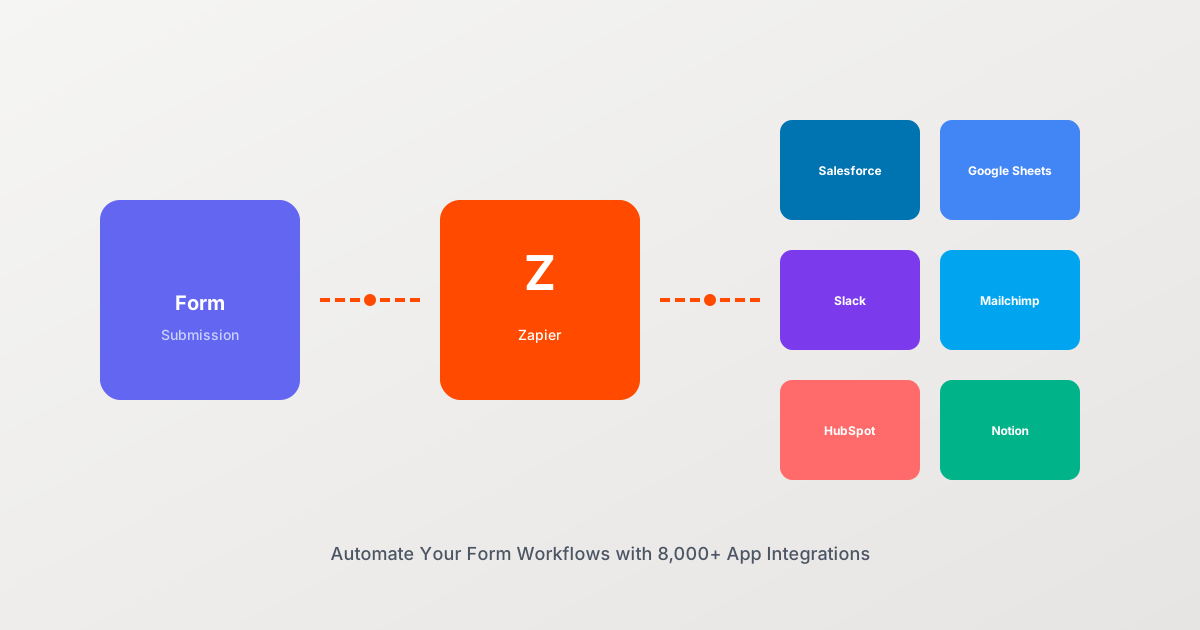
- Same webhook also adds the lead to your CRM via Zapier
Integrate with Zapier or Make (formerly Integromat)
Even if your form builder doesn’t have native Notion integration, tools like Zapier and Make can bridge the gap.
Example Zap:
- Trigger: New form submission in Pixelform
- Action: Create new row in Notion database
- Action: Send email confirmation via Gmail
- Action: Add contact to Mailchimp list
Use Notion Databases as Dynamic Content Sources
Get creative by using Notion itself to power form options. Some form builders can pull dropdown options from a Notion database, allowing you to update form choices without editing the form itself.
Example: A property management company uses a Notion database of available units. Their rental application form dynamically pulls the current available units, so it’s always up-to-date.
Conclusion: Start Embedding Forms in Notion Today
Embedding forms in Notion transforms how you collect, organize, and act on information. Whether you use Notion’s native forms for simple internal needs or third-party form builders like Pixelform for advanced features, you now have all the knowledge you need to implement forms effectively.
Quick recap:
- Use Notion native forms for basic, free data collection directly connected to databases
- Choose third-party form builders for advanced features, branding, and external use cases
- Follow best practices: keep forms short, test on mobile, use conditional logic, and set up notifications
- Troubleshoot common issues like display problems and sync delays
- Explore automation with webhooks and Zapier for powerful workflows
Ready to build your first form? If you want a form builder that’s affordable, feature-rich, and integrates seamlessly with Notion, try Pixelform for free. 14-day trial, cancel anytime—just sign up, build your form, and embed it in Notion in minutes.
👉 Get started with Pixelform today and see why indie makers, startups, and teams choose it over bloated enterprise alternatives.
Got questions about embedding forms in Notion? Drop a comment below or reach out—we’re here to help!